
How to Open EPUB Files on iPhone and iPad
Download a DRM-free EPUB to Files, then import it into LinkBook and open it from your library. File import and Book Mode require Premium. Apple Books is also a useful choice when you simply want to read an EPUB.
Import an EPUB
- Save a legitimate, DRM-free .epub file in Files. If it is in cloud storage, download it first.
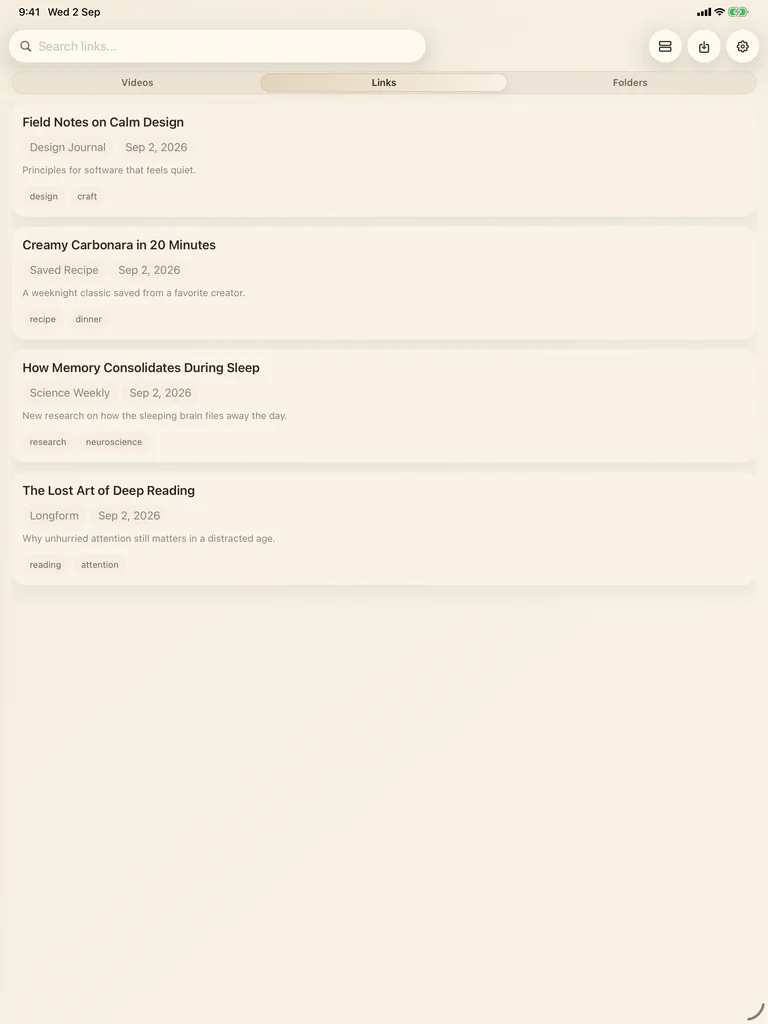
- Open LinkBook. Tap the downward-arrow Import file button at the top of the library.
- Choose the EPUB in the file picker and wait for it to appear in your library.
- Open the saved EPUB to read. You can also share a supported EPUB attachment from Files to LinkBook; the Share Sheet confirmation is Post.
Read, highlight and return
Use the Aa reading settings to adjust type and spacing. Use the reader’s navigation menu to open Book Navigator and choose a chapter. Search Book finds text in the book. Select text to highlight it or attach a note, and reopen the same book to return to saved progress.
Book Mode provides paged reading. The app’s control labels are in English on iPhone and iPad.
Prepare the book for offline reading
Import the file and open it while connected, then confirm it opens again without a connection before traveling. A file visible in iCloud or in a synced library may still need its first download on that device. External links and remote media inside a book may need the internet.
If an EPUB will not open
Check that the download is complete and the file is actually an EPUB. LinkBook supports DRM-free EPUBs; a book tied to a store’s DRM cannot be unlocked by importing it. Try a small known-good EPUB to distinguish a damaged file from an import problem. Keep the original file before attempting another import.
Apple Books or LinkBook?
Apple Books is a straightforward option for a personal ebook shelf. LinkBook is useful when a book belongs alongside saved articles, PDFs, tags and project notes. Neither choice requires you to move every book out of its existing app.
Related guides
Download LinkBook