How to Bookmark and Save Links on iPhone
To bookmark a website on iPhone, open it in Safari, tap the page menu next to the address field, tap Add Bookmark to, choose a folder and tap Save. To keep links from Safari and your other apps together with tags and notes, save them to LinkBook with its Safari extension or the Share Sheet.
How to bookmark a website in Safari on iPhone
- Open the page in Safari.
- Tap the page menu button next to the address field (called More on iOS 26), then tap Add Bookmark to.
- Choose where to save the link: Favorites or another bookmarks folder. Then tap Save.
If you use the Bottom or Top tab layout, or iOS 18, touch and hold the Show Bookmarks button and tap Add Bookmark. To find a bookmark later, tap Show Bookmarks and open its folder. Apple’s guide covers bookmarking on each iOS version.
Other ways to save a page in Safari
- Reading List is for articles you mean to read soon. Tap the page menu, tap Share, then Add to Reading List, or touch and hold any link and choose Add to Reading List. Turn on Automatically Save Offline in Settings › Apps › Safari to keep them for reading without a connection (Apple’s Reading List guide).
- Favorites are bookmarks saved in the Favorites folder, shown when you open a new tab.
- Add to Home Screen puts a site on your Home Screen like an app: tap the page menu, tap Share, then Add to Home Screen. The icon appears only on the device where you add it.
- Tab Groups keep related open tabs together: tap Tabs, touch and hold a tab, then tap Move Tab › New Tab Group (Apple’s Tab Groups guide).
- On iPad, Safari can bookmark every open tab at once: tap Tabs, tap More, then Add Bookmarks for the tabs.
A bookmark or a Home Screen icon only points to the page. It does not download the page, its images or its videos for offline reading: for a copy you can read anywhere, save the page as a file.
How to save a link or webpage as a file on iPhone
Safari can save the page you are reading as a PDF in the Files app:
- Open the page in Safari, tap the page menu button next to the address field, then tap Share. With the Bottom or Top tab layout, tap the Share button instead.
- Tap Markup. You can highlight or write on the page, or leave it as it is.
- Tap Done (on some iOS versions it is under the More button), choose Save File To, pick a folder, enter a name and tap Save.
The PDF is a snapshot of the page as it looked when you saved it: it does not update, and embedded media is not kept (Apple’s guide). To keep the link itself, bookmark it or save it to LinkBook. LinkBook can also keep the PDF next to your links: tap + and choose Import a Book or Document.
Where are saved links on iPhone?
- Safari bookmarks and Favorites are in Safari: tap Show Bookmarks and open a folder. Favorites also appear when you open a new tab.
- Your Reading List is in the same bookmarks view: switch to Reading List.
- Links friends sent you in Messages appear on Safari’s start page, below Suggestions, when Shared with You is on (Apple’s guide).
- Pages saved as files go to the folder you chose in the Files app. Files you download in Safari go to the Downloads folder.
- To find links saved to LinkBook, open its Links page or search. Saved books and documents are on the Library page.
Save links to LinkBook from Safari and other apps
With the Safari extension
- Open Settings › Apps › Safari › Extensions, tap Save to LinkBook and allow it.
- In Safari, open the page menu next to the address field and tap Save to LinkBook.
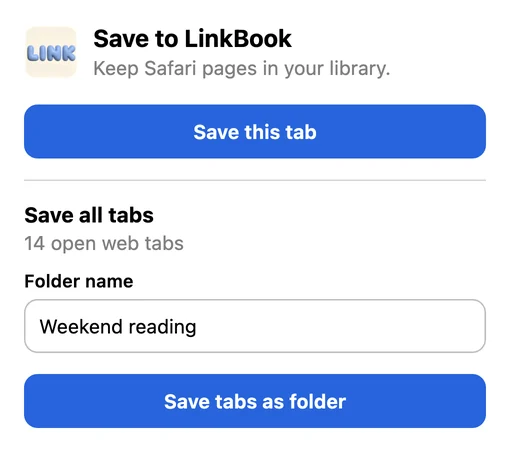
- Tap Save this tab. To keep every open tab together, type a folder name and tap Save tabs as folder.
- Open LinkBook. Your saves finish importing and appear in your library.
With the Share Sheet, from any app
- Install and open LinkBook once. Then open a page in Safari or another app that can share a web link.
- Tap the iOS Share button. In the app row, choose LinkBook.
- If LinkBook is missing, scroll the app row to More. Use Edit to add it to favorites when that option is available.
- Check the title and link in the LinkBook sheet, then tap Post.
- Open LinkBook and find the saved item in your library.
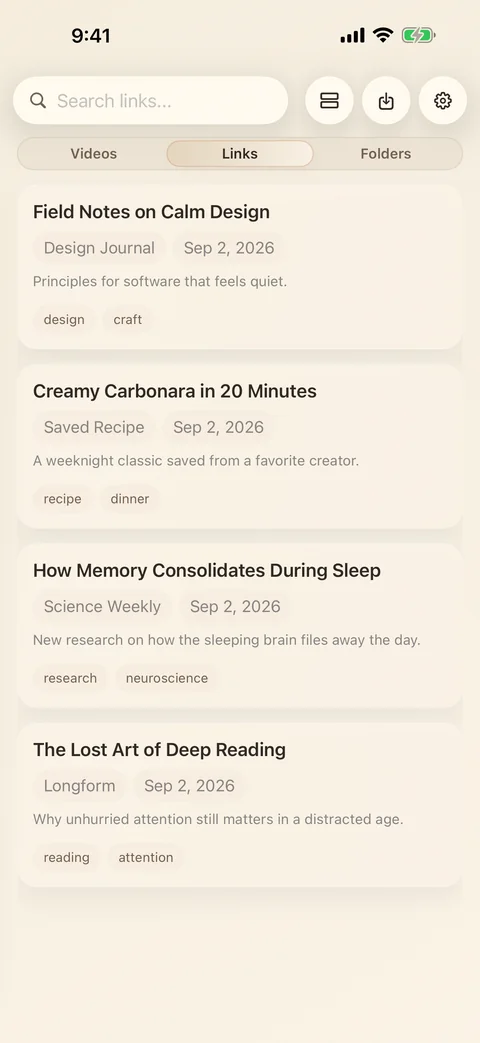
LinkBook keeps its own library. Saving there does not add a Safari bookmark, and your Safari bookmarks stay as they are.
Keep the reason you saved it
Add a short note, such as “compare for the trip,” and a useful tag. Mark a favorite when you want to return soon, and keep a project’s links together in a folder. Search looks through your notes and tags as well as page titles.
For articles, open the link in LinkBook’s Reader while connected so the text is ready when you are offline. Check the copy before a flight; live pages and embedded media still need a connection.
If a link did not appear
Open LinkBook and search for the page title or URL. Saves from the Safari extension finish importing when you open the app. Check whether the link is inside a folder or hidden from Home. If an app shares text or an image instead of a web URL, copy the actual link and add it in LinkBook. Keep the source page available until you confirm the save.
Move your Safari bookmarks into LinkBook
Export your Safari data from Settings › Apps › Safari › Export, expand the .zip in the Files app, and import the bookmarks HTML file in LinkBook: tap + and choose Import Browser Bookmarks. The bookmark import guide walks through it, and the Safari bookmarks alternatives comparison shows how LinkBook compares with other apps.
Related guides
Download LinkBook
