AI Reading Assistant
LinkBook Smart Cards + Reader Insights: an AI reading assistant for saved links
Save links to read later, use Smart Cards to pick what to read, read in Reader Mode, and keep what you learned with Quick Brief and Highlight Digest.
In this guide
- Why read-later lists grow faster than you can read them.
- Reader Mode and Smart Cards.
- Reader Insights: Quick Brief, Highlight Digest, Ask and Explain.
- One way to use them together, from saving to notes.
Too many saved articles, not enough time
If you save links to read later, the list grows faster than your reading time. One good topic can produce five articles you mean to read before lunch, and a week later they are a backlog you never get back to.
Even after reading an article, it fades: by the next day the main point is gone, the quote you liked is lost in the text, and you can’t find the article when you need it for a memo or a class.
An AI reading assistant helps with the parts around the reading: triage, choosing what to open, and keeping what mattered once you close the article.
Try LinkBook on iPhone
Install LinkBook and share a link to it from Safari or any other app. If the site is supported, the link shows up as a Smart Card.

Why reading online is hard to keep up
Ads, pop-ups, autoplaying video and sidebars make reading the text you came for harder, and the longer the article, the easier it is to drift off.
Many people also do their reading in one app, highlight in another and keep notes in a third. Each extra step is a place to stop, and the read-it-later list turns into a list of things you feel bad about.
Reader mode: a calmer place to read (even offline)
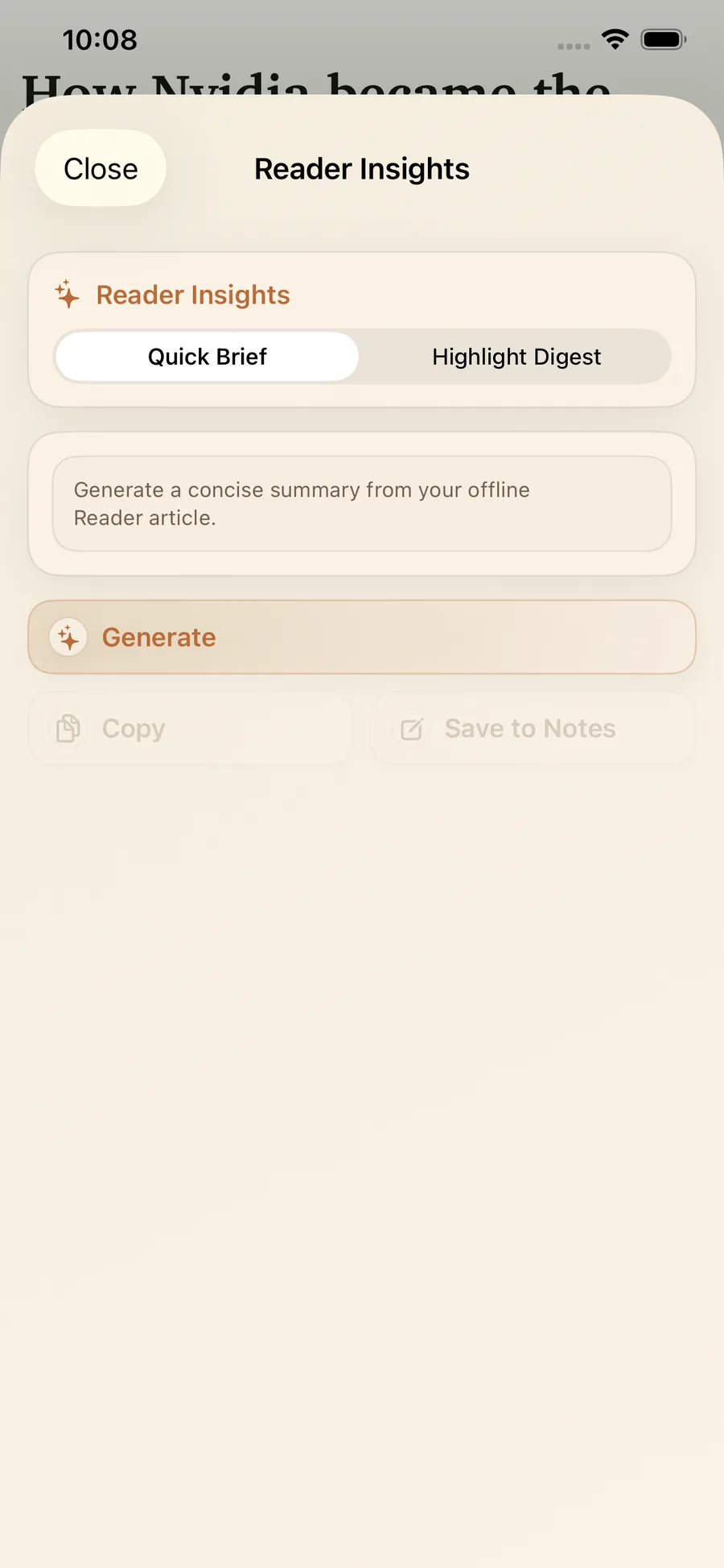
LinkBook Reader Mode is a reading view: it shows a saved article as plain text and pictures, with the page’s clutter removed, and keeps a copy so you can read it offline.
Every article opens in Reader Mode in the same reading layout, and your highlights are saved with the article.
Smart Cards: quick context so you know what to read next
Saving links in a read-it-later app is easy; choosing what to read now is harder. For supported sites, LinkBook shows a saved link as a Smart Card, a preview with details from the site, so you can see what it is before opening it.
A Smart Card answers what the link is about, which is usually enough to decide whether to read it now, later or not at all.
A simple way to triage
With Smart Cards, triage takes three steps:
- Scan your list as if it were an inbox.
- Pick one link that matches your current goal.
- Defer everything else without guilt.
Reading one article is worth more than saving ten, and the rest stay on your read later list until you have time.
Reader Insights: an AI reading assistant inside Reader mode
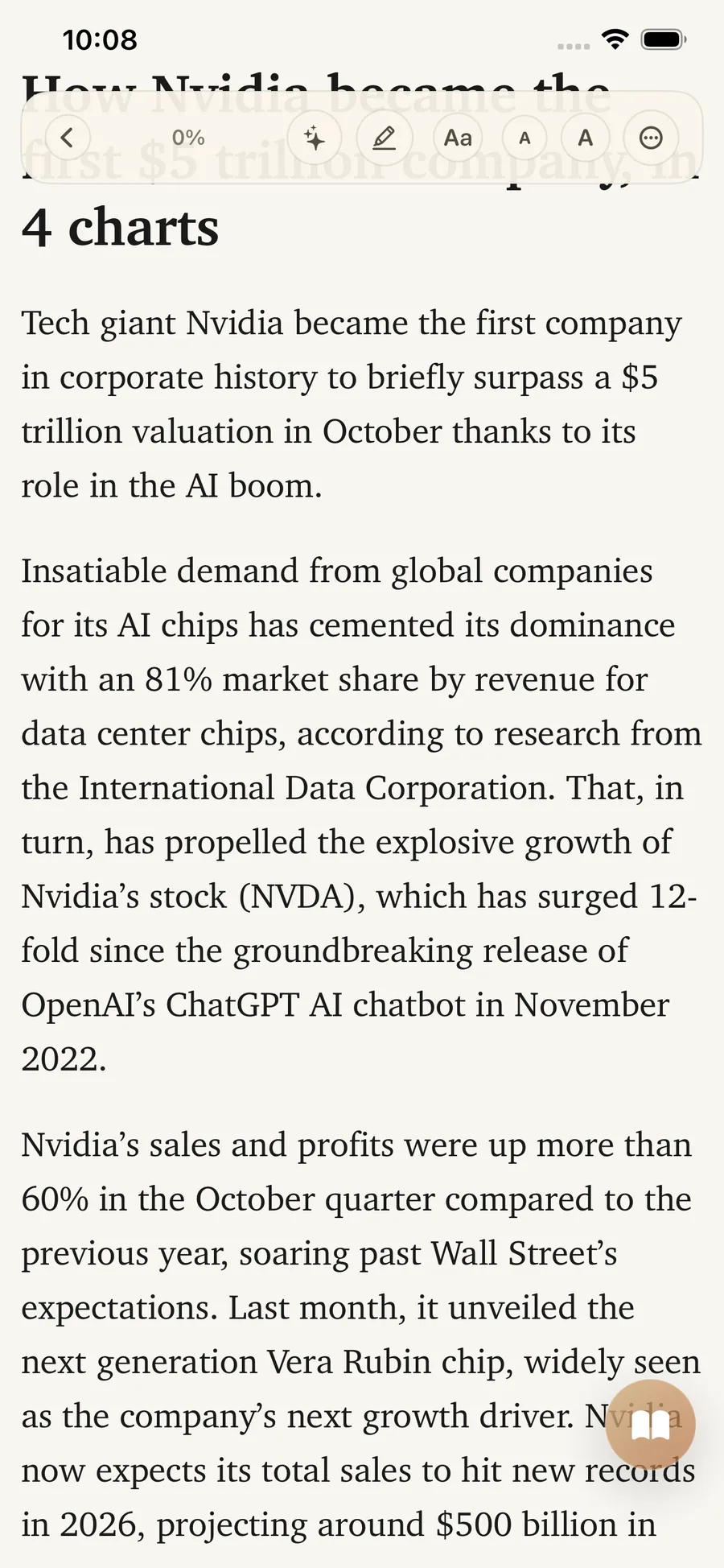
Smart Cards help you decide what to open; Reader Insights works inside Reader Mode, on the article you have open. You can generate an insight, regenerate it, copy it, or save it to the link’s notes without leaving the article.
Quick Brief: a fast article summarizer for the gist
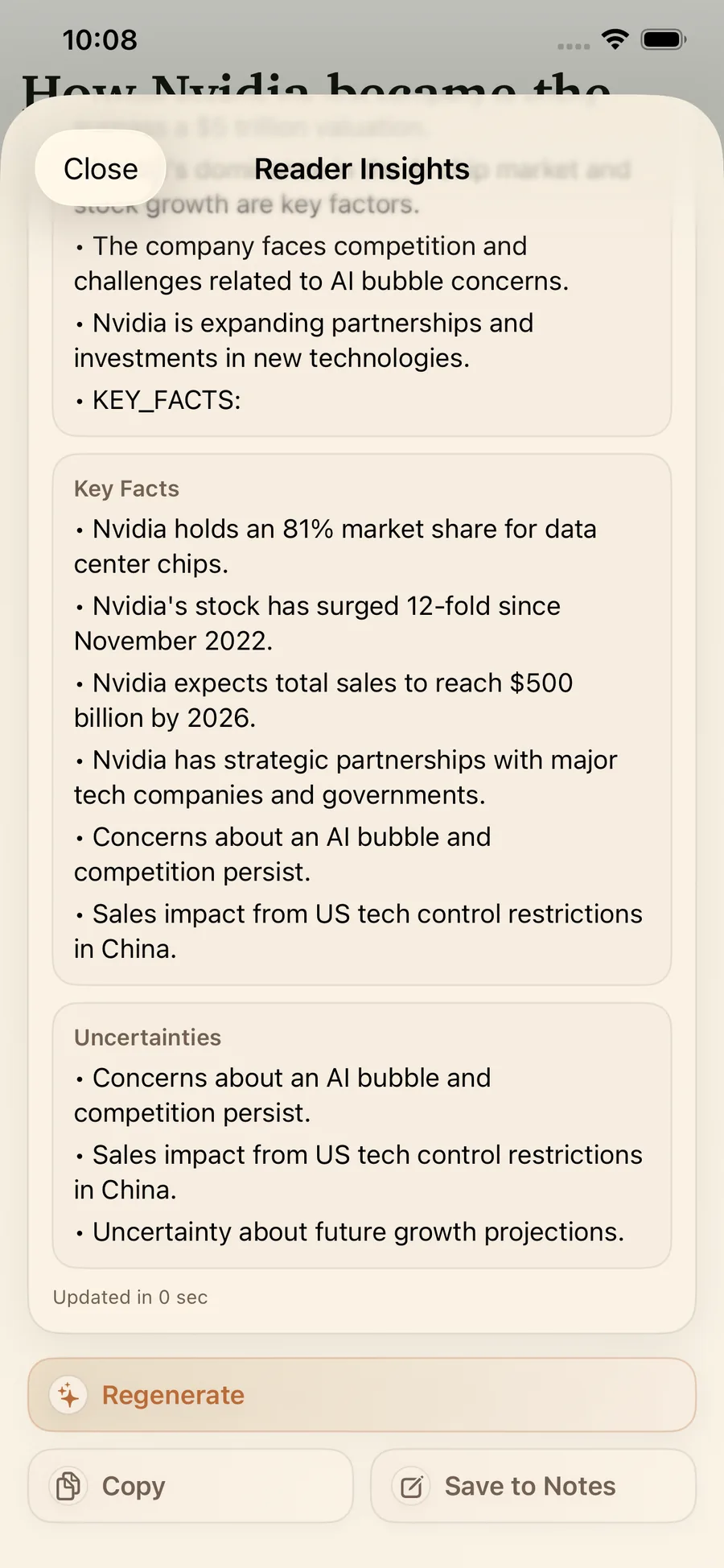
Quick Brief writes a short summary of the article in Reader Mode, so you know what it covers before reading every paragraph.
The summary comes in sections such as Brief, Key Facts and Uncertainties, which keeps what the article establishes apart from what it leaves open.
Highlight Digest: turn highlights into notes you can act on
Highlight Digest works from what you marked: it turns your highlights and notes in Reader Mode into a summary you can use later.
Depending on the article, the recap is grouped into sections such as Themes, Decisions, Action Items and Open Questions, which helps when you plan, write or hand work to someone else.
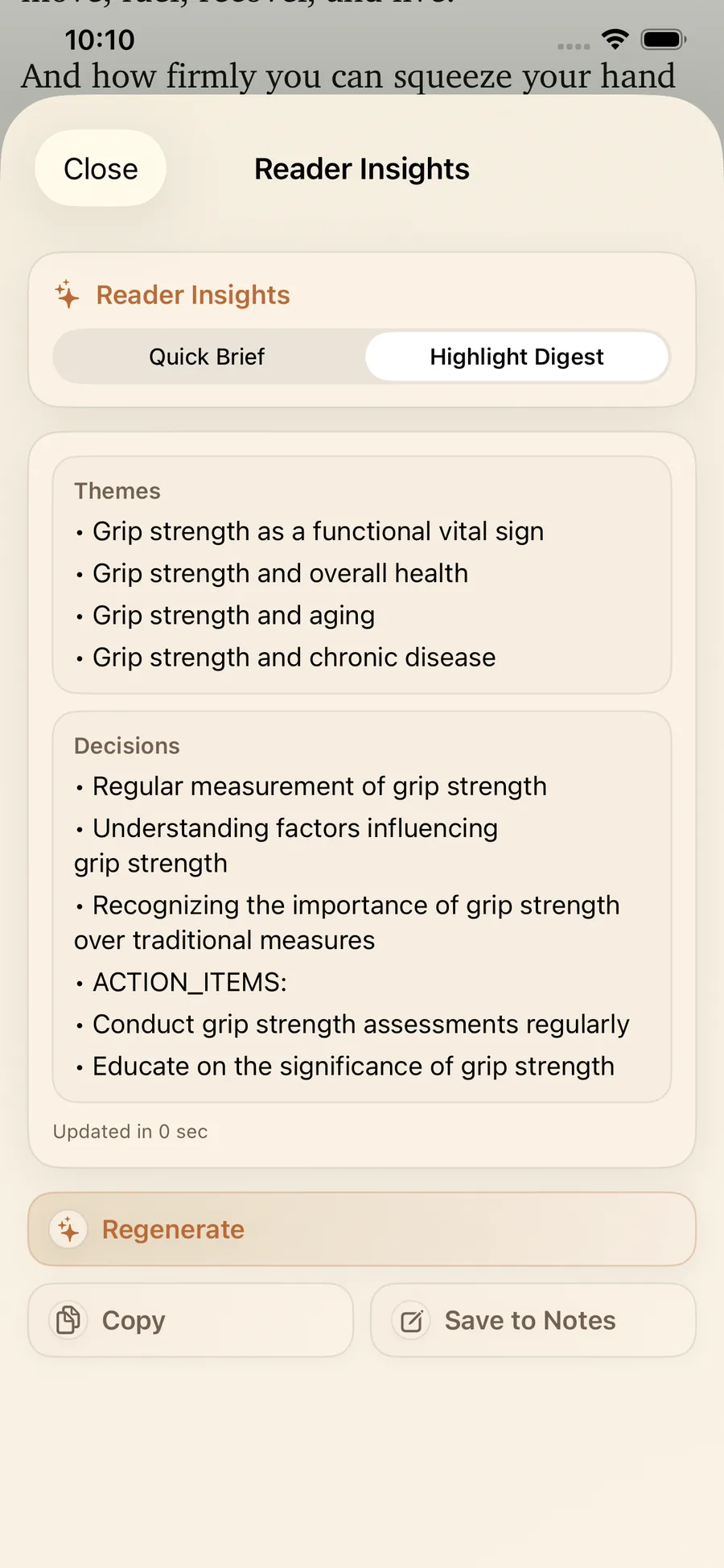
Regenerate, Copy, Save to Notes
Each insight has three actions for AI note-taking:
- Regenerate writes it again, for another angle or a shorter version.
- Copy puts the summary on the clipboard for a document, a task app or a message.
- Save to Notes keeps it with the link in LinkBook.
A quick note on on-device AI
Reader Insights runs on Apple Intelligence’s on-device model: Quick Brief, Highlight Digest, Ask and Explain are written on your device, so LinkBook does not upload the article. They need an iPhone or iPad that supports Apple Intelligence, iOS 26 or later, and Apple Intelligence turned on in Settings. Because the model is on your device, they also work offline.
How it works, step by step
- Save a link to LinkBook when you find something worth revisiting.
- Use the Smart Cards to triage and choose what to read next.
- Open the article in Reader Mode, online or offline.
- In Reader Insights, generate a Quick Brief for a short summary.
- While reading, highlight what matters for your work or class.
- Generate a Highlight Digest of your highlights.
- Save to Notes so insights stay attached to the link.
- Copy them into a document, a task or a chat when you need them.
What you get from each saved article
Reading that is easier to start and to finish tends to happen more often, so the read later list shrinks, and you remember more of it. In LinkBook that comes down to:
- Quick Brief, to know what an article says before you read it all.
- Highlight Digest, to keep what you marked.
- Smart Cards, to triage what to read first.
- Reading, highlighting and notes in one app.
- Summaries you can copy and send to someone else.
Try this AI reading assistant on your next long article: a Quick Brief before you read, a Highlight Digest after.
New in LinkBook 4.0: Ask, Explain and notes
Reader Insights now answers questions. In the Insights sheet, Ask answers from the document’s own text, with links to the pages it relies on, and says so when the answer is not there. Select a phrase or sentence and choose Explain for its meaning in simpler words. A link can also hold several notes, including AI notes with a summary or key points, and insights sync between your devices. See how to ask a PDF questions.
FAQ
What is an AI reading assistant?
An AI reading assistant summarizes long articles, pulls out their main points and turns your highlights into notes. You still choose what to read and what to keep.
What is the difference between Quick Brief and Highlight Digest in LinkBook?
Quick Brief summarizes the whole article for a quick overview. Highlight Digest summarizes your highlights and notes into a recap you can save or share.
Can LinkBook work as an offline reader app?
Yes. LinkBook Reader Mode keeps a copy of each saved article, so you can read it when your connection is weak or gone.
Try Reader Insights on your next long article
Save your next long article in LinkBook, triage it with the Smart Cards, open it in Reader Mode, start with a Quick Brief and finish with a Highlight Digest you can keep with the link.
Download LinkBook on the App Store and explore how Smart Cards work in LinkBook.
Ready to build your link library?
Download LinkBook and start saving in seconds.